GTM in the Shopify checkout
A Shopify checkout runs no theme code. No container loads, so Tag Assistant has nothing to attach to and your tags never see the events that matter most. Here is what GTM Enhancer does about it, and how to set it up.
The bridge: nothing to set up
Works as soon as the extension is installed.
Shopify gives you a custom pixel sandbox. Other tools show you what happens in there through a
popup, next to the page. Enhancer forwards those events into the checkout
dataLayer instead, so Google Tag Manager and Tag Assistant treat them as real
events — with the preview session still attached.
- Bridged events carry a Shopify icon in the Tag Assistant sidebar, so you can tell them from the ones the page pushed on its own.
- Icons are scoped to checkout page groups and to the shop that actually pushed the event.
- Container auto-detect waits for the Tag Assistant session to initialise before deciding. It never caches a premature “not a Shopify store” verdict, and it repairs a wrong one on the next checkout.
Loading your GTM in the checkout
Optional, one setup per store.
The bridge puts events in the dataLayer, but on a checkout page there is still no
container to read them. If you want your own GTM to run there, the extension can register the
loader for you — the one your Tag Manager account gives you.
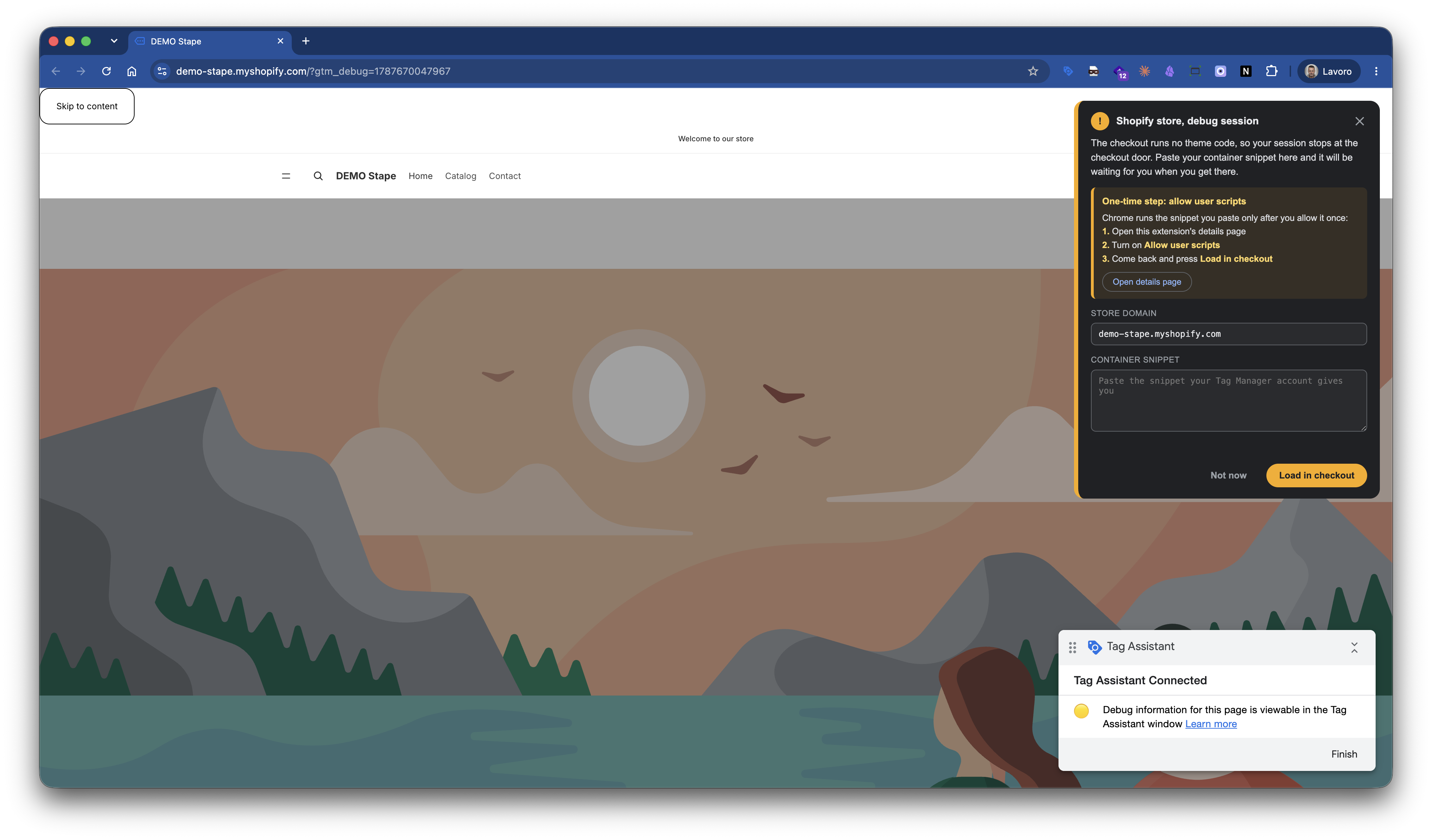
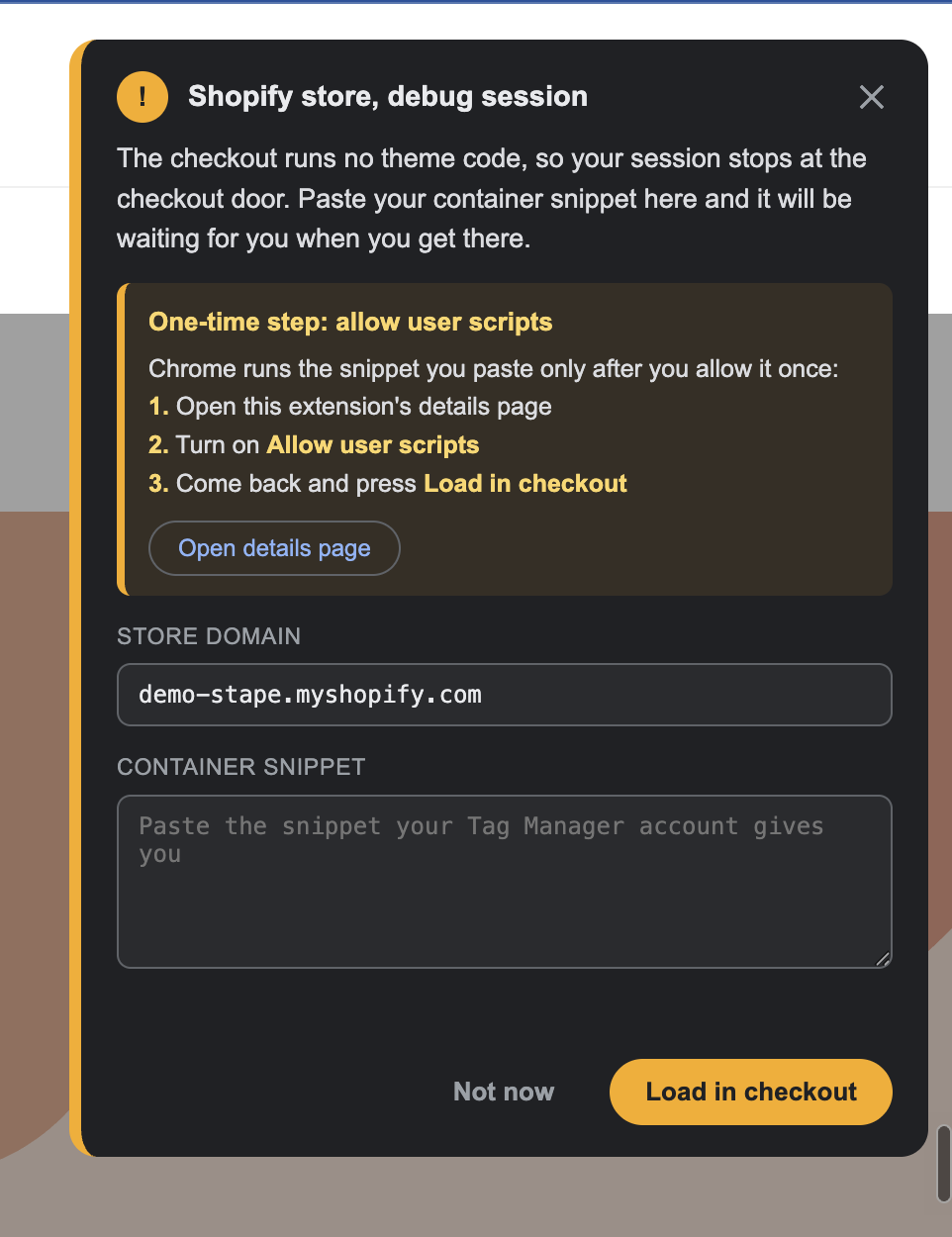
- Open the store with Tag Assistant connected. A panel titled Shopify store, debug session flies in at the top right, with the store domain already filled in from the page.
- Put your container snippet in the Container snippet field — the same
<!-- Google Tag Manager -->block your Tag Manager account hands you. If the storefront already runs a loader, the field arrives prefilled with it, copied off the page rather than generated. - Turn on Allow user scripts. This one matters: it is a Chrome switch, not an extension setting, it is off by default, and until you flip it nothing runs. The Open details page button in the panel takes you straight to the extension’s details page, where the toggle sits under Site access. Chrome warns you that the extension will be able to run code it has not reviewed — that code is the snippet you pasted, and nothing else. Close the panel and a badge on the extension icon brings you back to it.
- Press Load in checkout. From that moment the snippet loads on every checkout of that store, and Tag Assistant attaches the way it does anywhere else.
Why it works this way
An earlier build loaded a container into the checkout by itself, and the Chrome Web Store
rejected it: Manifest V3 bans running code that is not in the extension package,
gtm.js included. That is the right rule, and version 1.6.0 removed the feature.
Version 1.6.1 brings it back from the other side. The snippet is yours, and Chrome has a
documented mechanism for code the user provides — the userScripts API, which is
exempt from the remote-code rule. The extension registers your snippet through it.
Nothing ships inside the package: with no snippet saved, nothing is registered, and the checkout is left exactly as Shopify serves it.
Two stores at once
Debugging two shops in parallel used to mean crosstalk. It no longer does.
- A container detected for a specific shop wins over the container typed in the global field, which is now only a fallback.
- Event icons are scoped per shop, so one store's checkout events never show up decorated as another's.
- A manually entered container lasts for the session: close the last Tag Assistant tab and it is cleared, so the next session starts from auto-detect instead of yesterday's typo.
Starting over
The popup has three tabs — Layout, Tag Assistant, Shopify — and it reopens on the one you used last. Under Shopify there is a Reset Shopify data button: it forgets the saved snippet, the offers already shown and the bridged events, unregisters the user script from Chrome and clears the badge.
Use it when you are testing the setup from scratch, or before handing the browser to someone else.